Your agents keep working. Your PC stays awake.
Keeplit stops Windows from sleeping while your AI agents, builds, downloads and renders finish. Start a session, walk away, even close the lid. When it ends, your PC sleeps normally again.
2.4 MB · No admin rights · No account · Collects no data
Long jobs and sleepy PCs don't mix.
You start an agent, a big download or a render and step away. Twenty minutes later Windows decides you're gone and puts the PC to sleep, and your work stops halfway.
Without Keeplit
With Keeplit
Small app. Big peace of mind.
Keeplit lives quietly in your system tray and does one job well: keeping Windows awake exactly as long as you need, then getting out of the way.
Sessions, your way
Keep awake for a set time (1 minute to 24 hours), until a time of day, or until you stop it. Watch the countdown and add 15 minutes with one click.
Screen off, work on
The display can still turn off to save power while your PC keeps working. Want the screen on too? It's one tick away.
Lives in your tray
A closed eye means your PC sleeps normally. An open green eye means a session is running. Left-click for the panel, right-click to start or stop.
Safe by default
Needs the charger by default, with an optional battery cutoff. Sessions end when Windows sleeps and never restart on their own.
Private by design
No telemetry, no analytics, no sign-in, and it never connects to the internet. Your settings stay on your PC.
Ends cleanly, every time
When a session ends, by timer, by you, or by a safeguard, Keeplit lets Windows sleep normally again and tells you why.
Starts with Windows
Optional: Keeplit can start when you sign in, hidden in the tray, so a session is always one click away. It's a normal Startup shortcut you can remove any time.
Built to be trusted
Keeplit asks Windows to stay awake the proper way and checks that Windows agreed. It never wiggles your mouse, never needs admin rights, and is fully usable with a keyboard or screen reader.
Close the lid. Keep the work going.
Windows normally sleeps the moment you shut a laptop. Turn on closed-lid mode and Keeplit tells Windows to do nothing when the lid closes, only for that session, and puts your setting back afterwards.
- Off until you turn it on, and you first see a plain explanation of exactly what changes.
- Plugged in only by default. Unplug and the session ends within about 5 seconds.
- Up to 4 hours per closed-lid session.
- Stops at 20% battery, even on the charger, in case it can't keep up.
- Your Windows lid setting is saved first and always put back, even if Keeplit crashes or freezes.
- No admin rights, no hidden services.
Keep it cool. A closed laptop can't breathe as well, and Windows doesn't let apps read the temperature. Use a hard, open surface, and never run it closed inside a bag.
Three steps. Then forget about it.
- 1
Download & install
A small installer for your account only, with no admin rights. Keeplit appears in your system tray.
- 2
Start a session
Pick 2 hours, until 6 pm, or until you stop it. The tray eye opens: Windows won't fall asleep.
- 3
Walk away
Let the screen turn off, or close the lid with closed-lid mode. When the session ends, normal sleep is back.
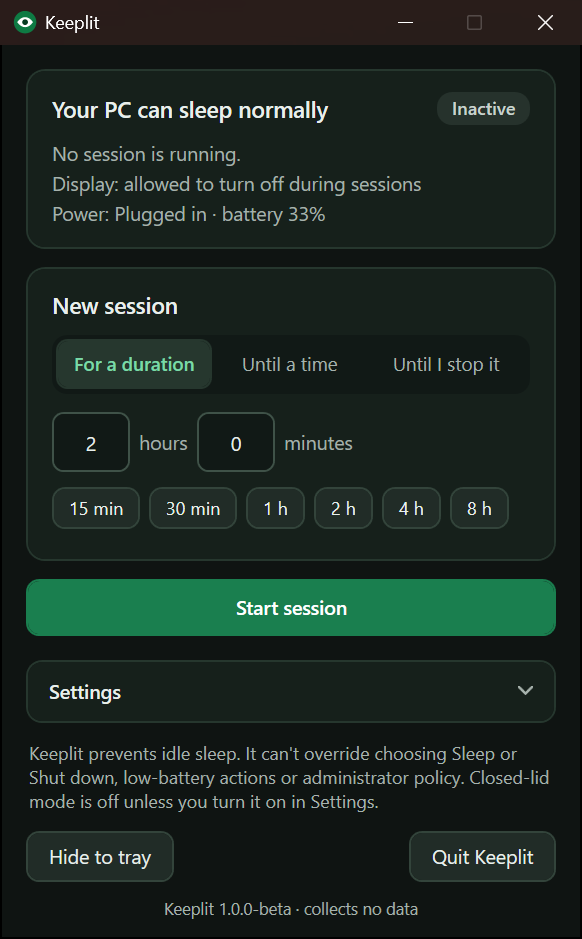
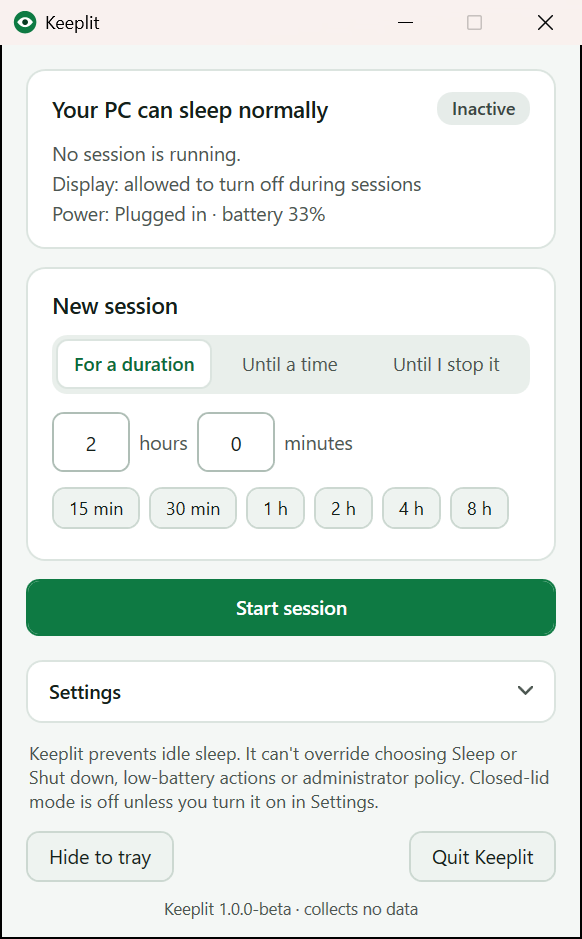
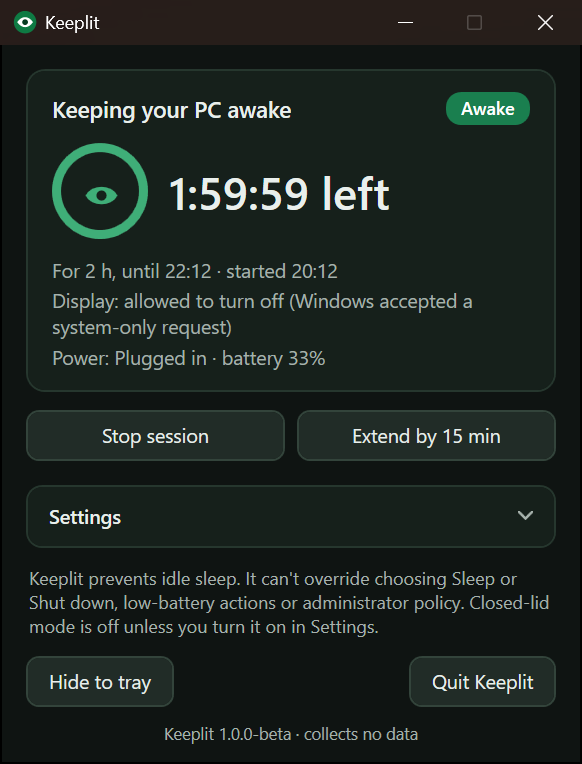
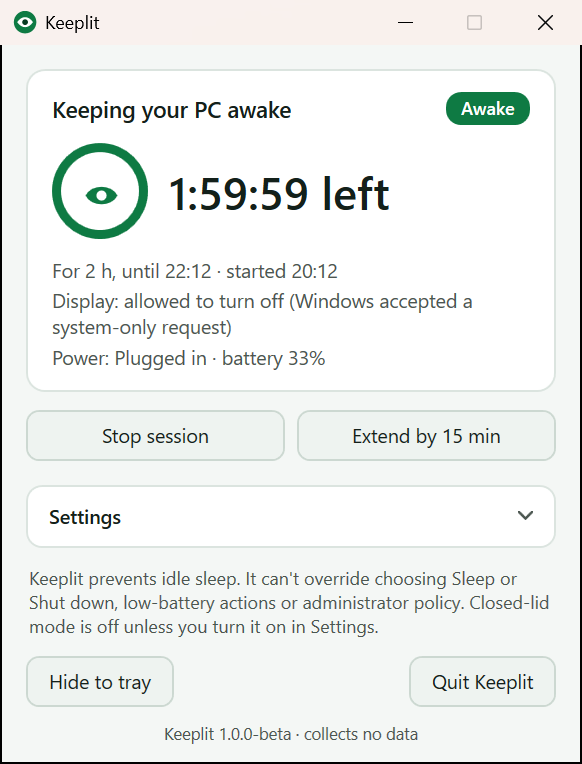
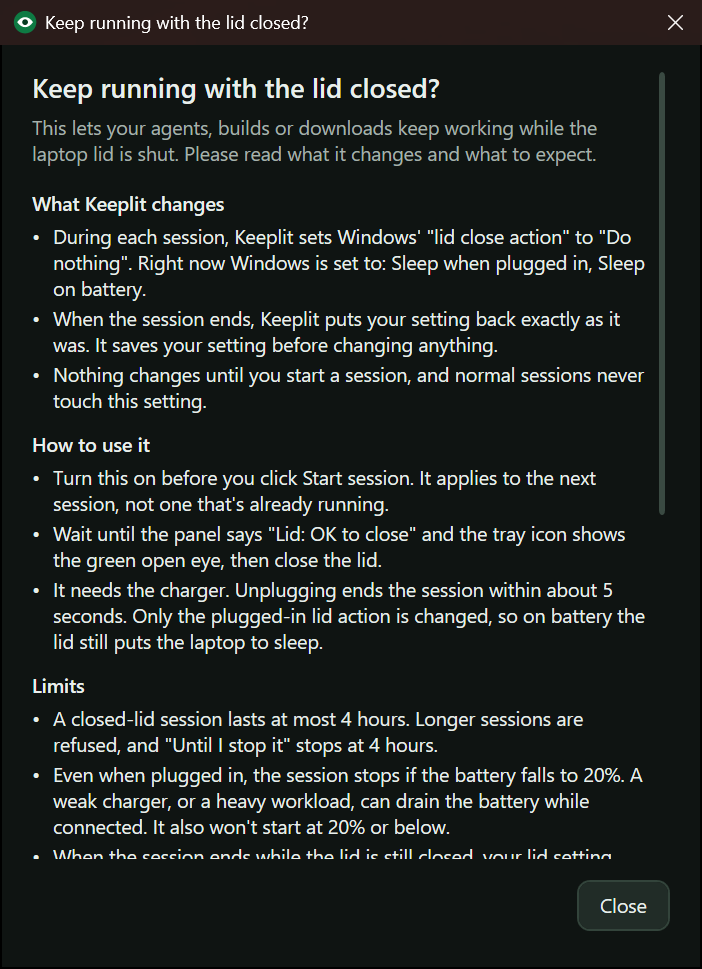
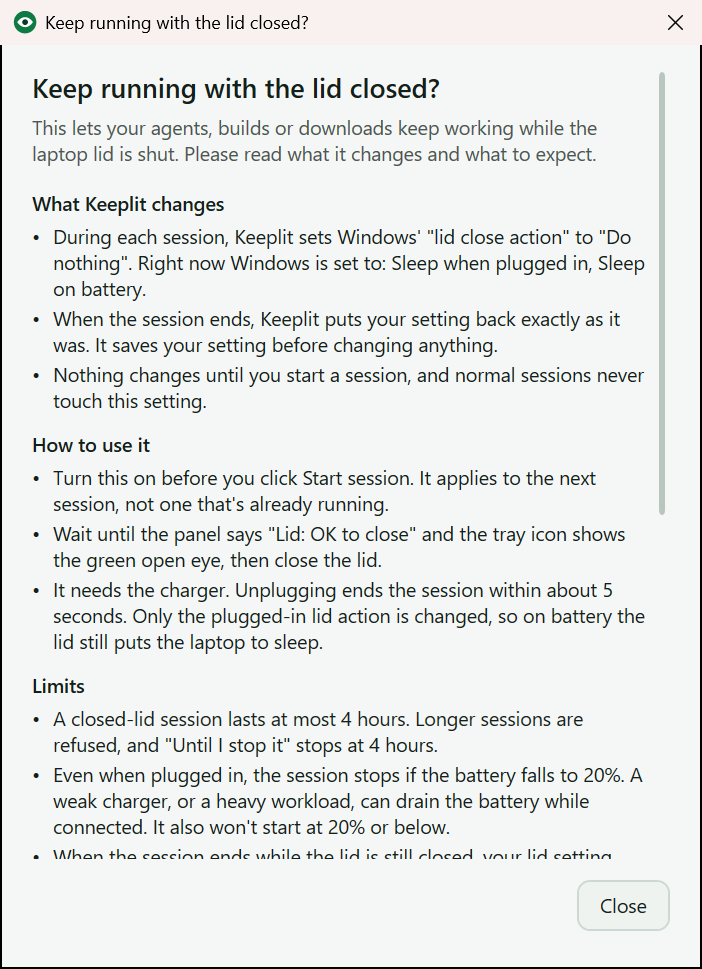
Real screenshots from Keeplit · Windows 11 · follows your light or dark mode
Get Keeplit for Windows
Free. Windows 10 (1809 or later) and Windows 11. No admin rights, no account, nothing else to install.
Download Keeplit 1.0.0-betaVerify your download (SHA-256)
In PowerShell, run Get-FileHash .\KeeplitSetup-1.0.0-beta.exe and compare with:
- Keeplit-1.0.0-beta-portable.zip
e9599e6b088bd53671d36da7a94939d6d3e09023a509f02a0967364b8d3a5024 - KeeplitSetup-1.0.0-beta.exe
9f3be8f3802b96b90a67e135898bf5d5b2a825188b48c1e3deaf10268846b426
"Windows protected your PC"?
Keeplit is new and this beta isn't code-signed yet, so Windows shows a caution screen the first time. It's a normal message for new apps.
- Click More info
- Click Run anyway
Want to be sure it's genuine? Compare the SHA-256 fingerprint above.
Good questions
If I press Sleep or close the lid, will my agents keep running?
Choosing Sleep or pressing the power button always puts the PC to sleep. Windows doesn't let any app block that. Closing the lid is different: with closed-lid mode on (and the charger connected), your work keeps going with the lid shut for up to 4 hours.
Is closed-lid mode safe?
It's off by default and explains exactly what it changes before you turn it on. It needs the charger, stops at 20% battery even on the charger, lasts at most 4 hours, and always restores your Windows lid setting, even if Keeplit crashes or freezes. The one thing it can't do is read the temperature, so keep the laptop on a hard, open surface and never in a bag.
Does Keeplit change my Windows settings?
Normal sessions change nothing: Keeplit asks Windows to stay awake using its official keep-awake request, which disappears when the session ends. Only closed-lid mode changes one setting (what closing the lid does), and only while that session runs. Your original value is saved first and put back afterwards.
Why does Windows say it protected my PC?
Keeplit is new, and this beta isn't code-signed yet, so Windows SmartScreen shows a caution screen. Click More info, then Run anyway. You can check the file is genuine with the SHA-256 fingerprint on this page.
Does Keeplit collect any data?
No. It has no telemetry, no analytics, no account and no update check, and it never connects to the internet. Your settings are stored only on your PC.
Will my screen stay on?
By default the screen can turn off as usual while the PC stays awake, which saves power. If you want the display to stay on too, tick “Keep the display on” in Settings.
Does it work on ARM laptops?
Yes. The same small download works on every Windows 10 and 11 PC: Intel, AMD and ARM (Snapdragon / Copilot+ laptops). Keeplit runs on the .NET Framework that is already part of Windows, so there is nothing else to install.
Does it need admin rights?
No. Keeplit installs for your account only and runs without administrator rights.
How do I uninstall it?
Settings → Apps → Installed apps → Keeplit → Uninstall. It quits Keeplit first and removes everything it installed. Your small settings file stays in %LOCALAPPDATA%\Keeplit; delete that folder to remove it too.
Found a bug or have an idea?
Email hello@keeplit.xyz. Say which Windows version you use and what happened; a screenshot of the Keeplit panel helps.
Is there a Mac version?
Keeplit is Windows-only.